How to Use a Freelance Hourly Rate Calculator (Step-by-Step Tutorial)
USAFC / COMPLETE HOURLY RATE GUIDE · OCT 2026
The hourly rate you quote isn’t the amount you keep.
A $75 client rate is not $75 in your pocket. Unbilled hours, taxes and business costs change what remains.
The USAFC Hourly Rate Calculator helps U.S. freelancers forecast earnings or work backward from an income goal. Follow both modes, verified examples, original screenshots, exports and connected tools.
Planning estimates, not guaranteed earnings or exact tax liability. Calculator reviewed October 25, 2026.
Open the live calculatorExplore this guide 10 sections
FIELD GUIDE / 01
Choose the right calculator mode
START WITH A RATE
Hourly Rate → Earnings
“A client offered $75/hour. What could that earn?”
Forecast gross earnings from your billable schedule, then inspect optional modeled tax and business-cost results.
START WITH A TARGET
Income Goal → Hourly Rate
“What rate supports a $6,000 monthly income goal?”
Solve for a gross or modeled after-tax rate using target period, schedule and billable time.
The first is the Normal, or forward, mode. The second is Reverse planning. Reverse does not include business expenses in its rate calculation, so its after-tax target is not automatically the amount left after overhead.
Start with a business target, not just an old salary
A useful pricing baseline considers your personal income needs, operating costs, tax provision, self-funded benefits, and unpaid time. Health coverage and retirement saving still need room in your plan, but their cash-flow role and tax treatment are different questions.
Dividing an employee salary by 2,080—40 hours × 52 weeks—only converts that salary to an hourly equivalent. It does not account for a freelance business’s billable capacity or added costs. If you are replacing employment income, use the 1099 versus W-2 contractor-rate guide for that broader comparison.
The basic capacity relationship is:
Once you have a gross revenue target, dividing it by annual billable hours gives an unrounded billed-rate requirement. Converting a personal spending goal into that gross target needs additional tax, expense, and fee assumptions. Each calculator mode includes only the layers described below.
FIELD GUIDE / 02
Use Hourly Rate → Earnings to test a rate
Results update as you enter valid inputs. Saved settings may appear when you return, so check every field before following an example.
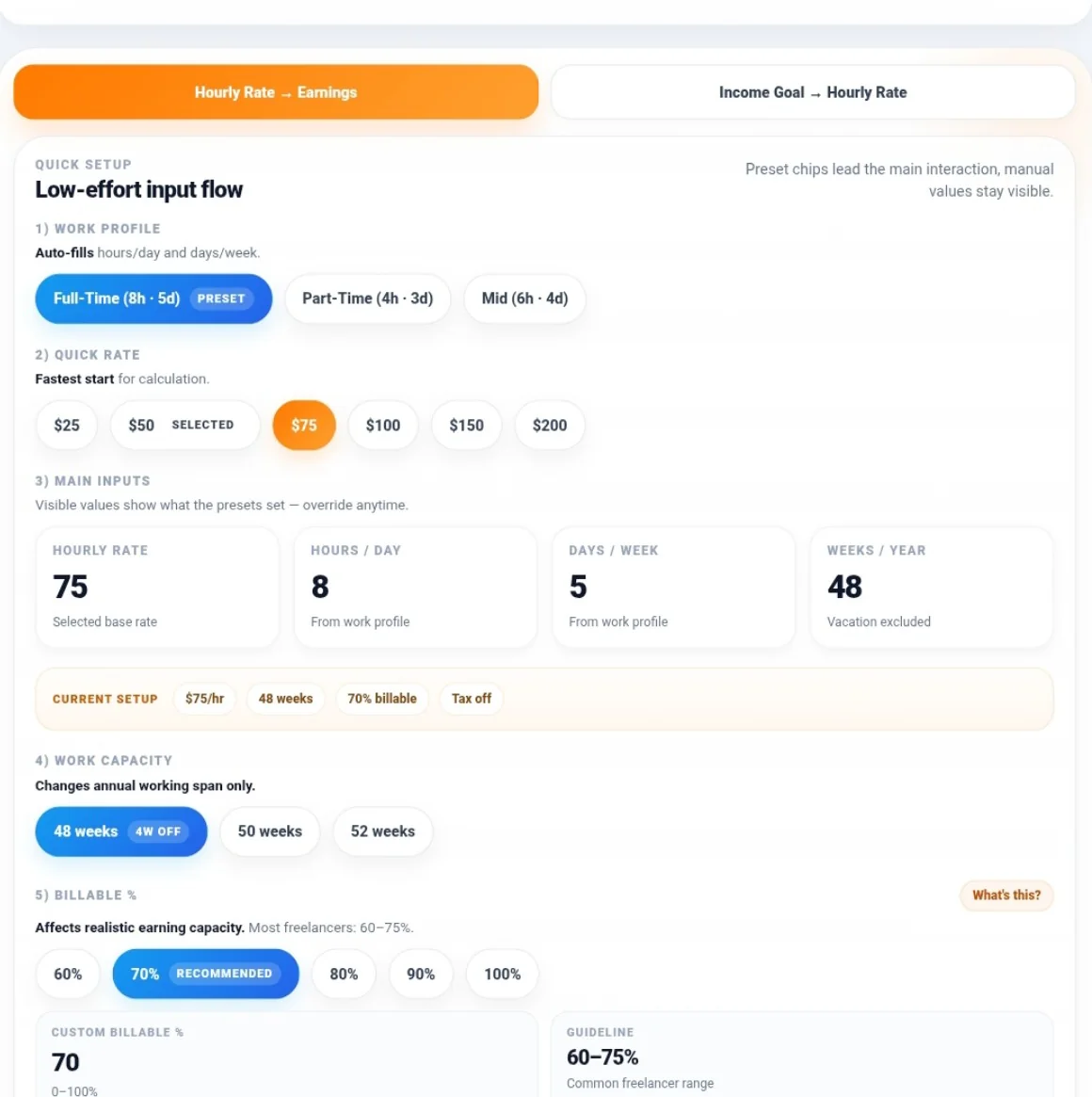
1. Select a work profile and enter your hourly rate
Choose Hourly Rate → Earnings. Under Work Profile, the presets initialize these values:
| Profile | Hours/day | Days/week | Weeks/year |
|---|---|---|---|
| Full-Time | 8 | 5 | 48 |
| Part-Time | 4 | 3 | 48 |
| Mid | 6 | 4 | 48 |
A profile also resets working weeks to 48. If you have already entered a different work year, check that field again after changing profiles.
Quick Rate offers $25, $50, $75, $100, $150, and $200. Select a preset or enter your own amount in Hourly Rate. For this example, enter 75, meaning $75 per billed hour.
Money fields accept ordinary dollar amounts such as 75, 75.50, or correctly grouped 1,500.50. Enter the number without a currency symbol. If a result disappears after an edit, correct incomplete or invalid fields before copying or exporting.
For a custom rate, use the numeric Hourly Rate field and the calculated result as your reference; preset-chip labels are not a substitute for checking the entered value.
2. Set your schedule and working weeks
Use Hours / Day for total scheduled work time, including the time you will later classify as non-billable. Set Days / Week and Weeks / Year to the schedule you actually plan to maintain.
The fields accept fractional schedules within these ranges: 1–24 hours/day, 1–7 days/week, and 1–52 weeks/year. You can use the 48-, 50-, or 52-week chips for a quick annual adjustment.
For example A, enter:
- Hourly Rate: $75.
- Hours / Day: 8.
- Days / Week: 5.
- Weeks / Year: 48.
Forty-eight working weeks leave four weeks outside the plan for vacation, holidays, illness, or other time off. Do not deduct the same four weeks again through a separate vacation adjustment—the calculator has no additional vacation-days field.
3. Enter billable percentage
Billable percentage is the share of scheduled working time you expect to invoice. Administration, proposals, marketing, and other unpaid business work occupy the remaining share.
Choose a Billable % preset—60%, 70%, 80%, 90%, or 100%—or type a value into Custom Billable %. Fractional percentages are supported: enter 56.25, without a percent sign, for 56.25% billable time. The valid calculation range is greater than 0% through 100%, despite the field’s abbreviated 0–100% hint.
Use 70% for example A. That produces:
| Capacity measure | Calculation | Result |
|---|---|---|
| Scheduled annual work time | 8 × 5 × 48 | 1,920 hours |
| Billable time per working week | 8 × 5 × 70% | 28 hours |
| Annual billable hours | 8 × 5 × 48 × 70% | 1,344 hours |
Do not enter an already reduced billable schedule and then reduce it again unless you intend that second adjustment. For example, entering only your 28 billable hours as scheduled time and applying 70% again would understate capacity.
The interface’s 60–75% range is guidance, not a universal statistic or a requirement. Use your own records where possible; the annual billable-hours guide explains a time-audit approach.

4. Read the gross earnings cards
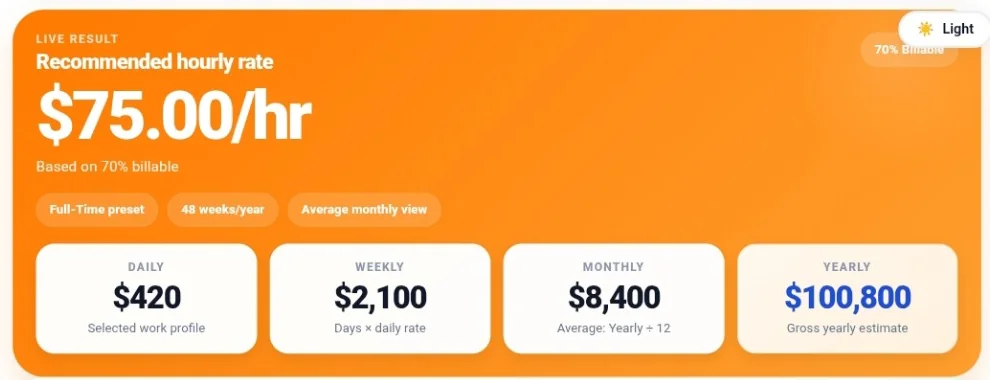
With Average (Yearly ÷ 12) selected, example A shows:
| Gross output | Calculation | Amount |
|---|---|---|
| Daily | $75 × 8 × 70% | $420 |
| Weekly | $420 × 5 | $2,100 |
| Monthly, Average | $100,800 ÷ 12 | $8,400 |
| Yearly | $2,100 × 48 | $100,800 |
These are projected gross billings before tax, business expenses, and platform fees. A daily or weekly figure describes that working period, not every day or week of the calendar year.
The prominent Recommended hourly rate in this mode repeats the rate you entered. It is not a survey-based recommendation about what clients in your market will pay.
Try this live: Set your own hourly rate and billable capacity in the USAFC Hourly Rate Calculator, then return to this walkthrough to interpret what changes.
5. Open Advanced settings and add monthly expenses
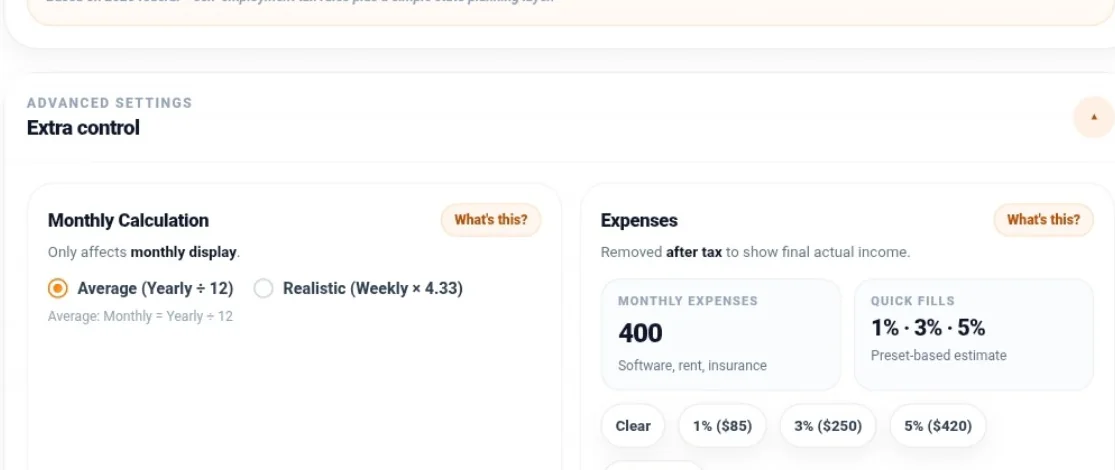
Open Advanced settings. This is where you choose the Normal mode’s monthly method and enter Monthly Expenses.
For example A, start with Average (Yearly ÷ 12) and enter 400 in Monthly Expenses. That represents $400/month, or $4,800/year, of assumed recurring business costs.
Expense Quick Fills include Clear and percentage-based suggestions. They insert a rounded dollar estimate based on the displayed monthly gross; they do not keep expenses automatically pegged to that percentage as other inputs change. Replace the suggestion with your own cost estimate when you have one.
6. Turn on the after-tax estimate
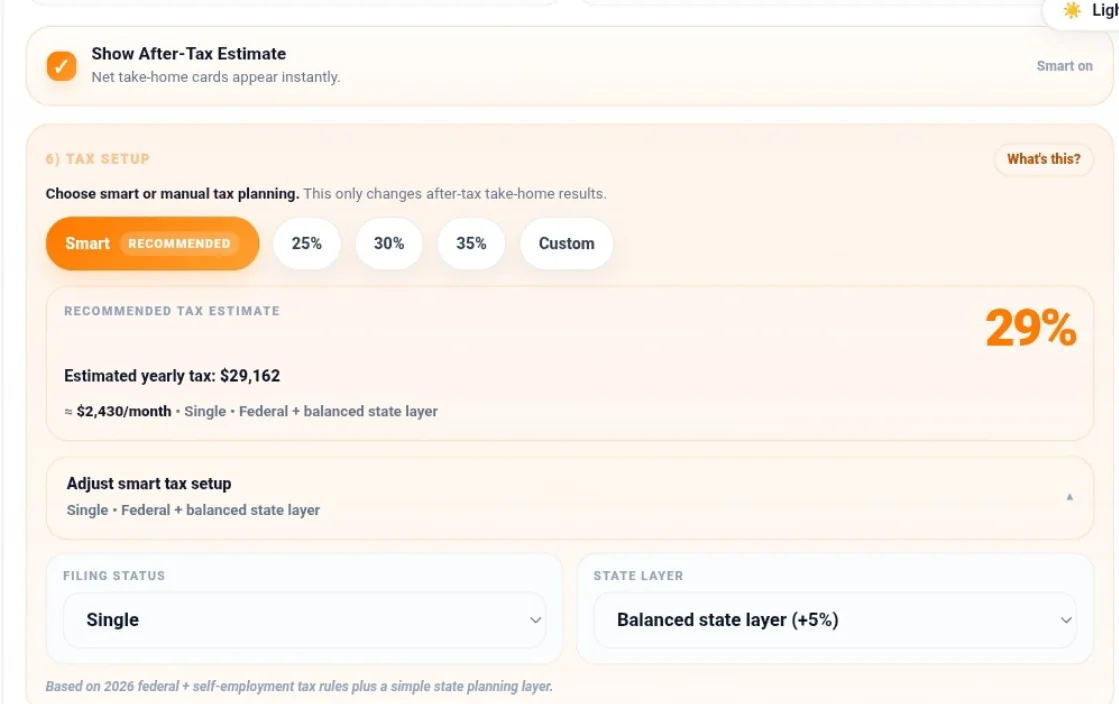
Enable Show After-Tax Estimate, select Smart, and open Adjust smart tax setup. For this example, choose:
- Filing Status: Single.
- State Layer: Balanced state layer (+5%).
Keep the $400 monthly expense amount entered above. The next two sections explain the monthly display and the resulting tax and usable-income figures.
FIELD GUIDE / 03
Choose Average or Realistic monthly income
The Monthly Calculation control changes the monthly display without changing your hourly rate, weekly gross, working weeks, or annual gross.
| Method shown in the interface | Actual calculation | Example A monthly gross |
|---|---|---|
| Average (Yearly ÷ 12) | Annual gross ÷ 12 | $8,400 |
| Realistic (Weekly × 4.33) | Weekly gross × 52/12 | $9,100 |
Although the label rounds the multiplier to 4.33, the implementation uses 52/12. For this example, $2,100 × 52/12 = $9,100.
Average distributes the planned 48-week annual amount across 12 months. Realistic shows a monthly equivalent of the weekly earning pace using a 52-week conversion. Consequently, $9,100 × 12 = $109,200, which is greater than the actual 48-week annual projection of $100,800.
Use Average when you want a monthly figure that reconciles to the annual gross plan. Realistic can help you inspect the weekly pace expressed as a monthly run rate, but it is not guaranteed collected cash or extra annual income. Invoice timing and payment delays remain outside this calculation.

FIELD GUIDE / 04
Understand Smart Tax, expenses, and what you keep
Smart versus a manual tax percentage
Smart uses the calculator’s simplified 2026 federal income-tax and self-employment-tax model, including the base standard deduction for the selected filing status. You can choose Single, Married Filing Jointly, or Head of Household, plus Federal only or a Light +3%, Balanced +5%, or Higher +7% state layer.
Those state layers are flat planning assumptions applied to modeled business profit. They are not calculations for a particular state’s return. Federal only still includes modeled self-employment tax; it does not mean federal income tax alone.
Alternatively, select 25%, 30%, 35%, or Custom. Custom accepts a manual percentage from 0% through 99%, including decimals. These options reserve a percentage of gross income instead of applying Smart’s progressive calculation. No one percentage is suitable for every freelancer.
Smart’s displayed percentage is rounded. A Smart badge of 29% does not mean the model simply multiplied gross by exactly 29%.
How Normal mode treats expenses
Under Smart, monthly expenses affect two different parts of the calculation:
- Annual expenses reduce the profit used in the tax model. In example A, $100,800 gross − $4,800 costs = $96,000 modeled business profit.
- The final usable-income view subtracts the expense cash outflow once from gross less modeled tax.
This is why an expense can lower estimated tax and still reduce available cash. Reducing a tax base is not the same as paying a business bill.
With a manual percentage, the tax reserve is calculated from gross, without Smart’s expense-based tax adjustment. Monthly expenses still reduce final usable cash afterward.
The expense panel’s brief “removed after tax” description refers to that final cash subtraction; it does not describe Smart’s entire tax-base calculation.
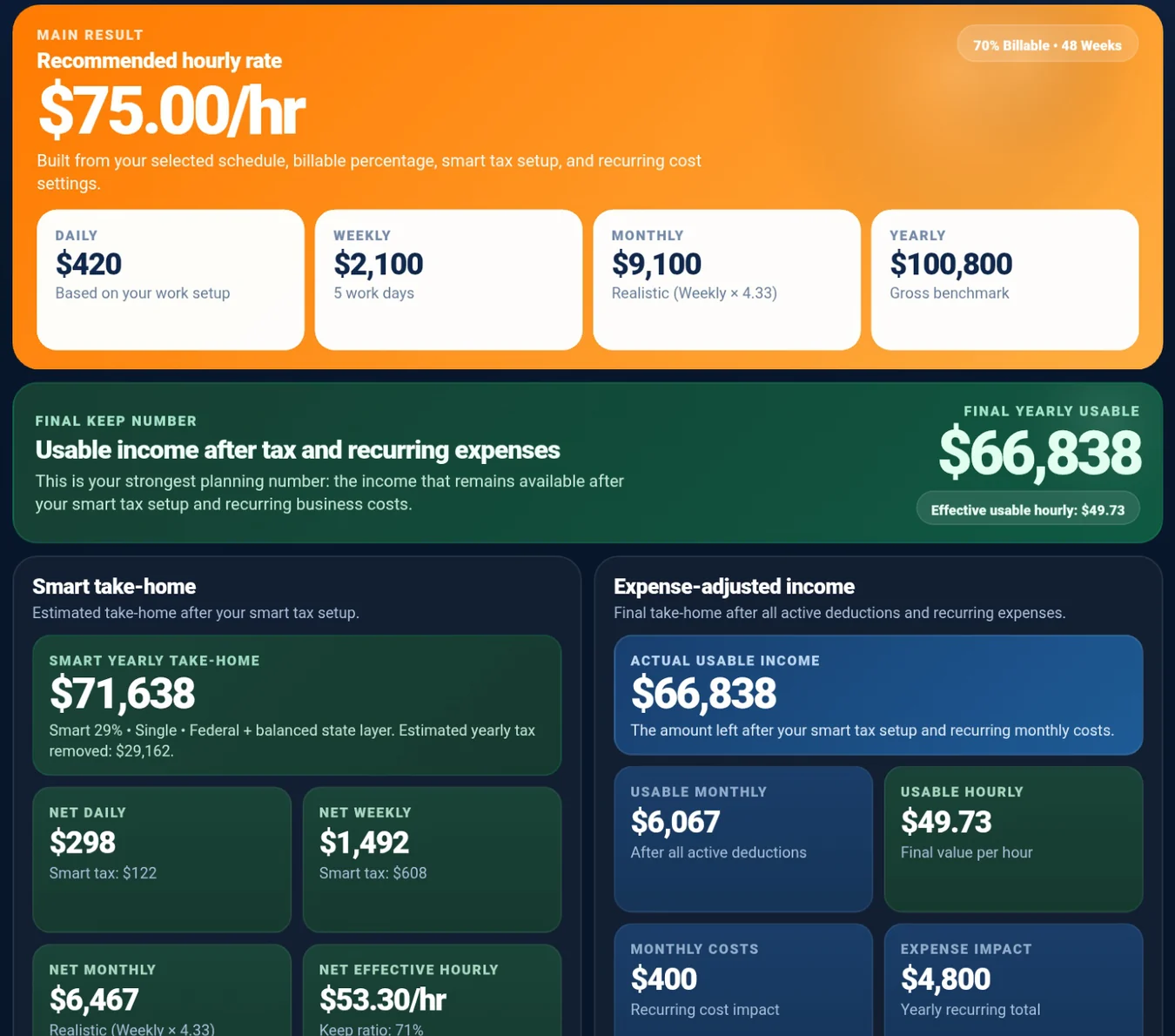
Example A: from $100,800 gross to usable income
These results use Smart, Single, Balanced +5%, and $400/month in expenses. They are not the Federal-only results used later in example B.
| Annual measure | Amount from the model | Whole-dollar display |
|---|---|---|
| Gross income | $100,800.00 | $100,800 |
| Estimated tax | $29,162.29 | $29,162 |
| After-tax income, before cash expenses | $71,637.71 | $71,638 |
| Business expense cash outflow | $4,800.00 | $4,800 |
| Final usable income | $66,837.71 | $66,838 |
The annual cash relationship is:
Where the $100,800 annual gross goes
Illustrative model: Smart · Single · Balanced +5% · $400 per month in costs.
$66,837.71 usable cash (66.31%)
$29,162.29 modeled tax (28.93%)
$4,800 recurring expenses (4.76%)
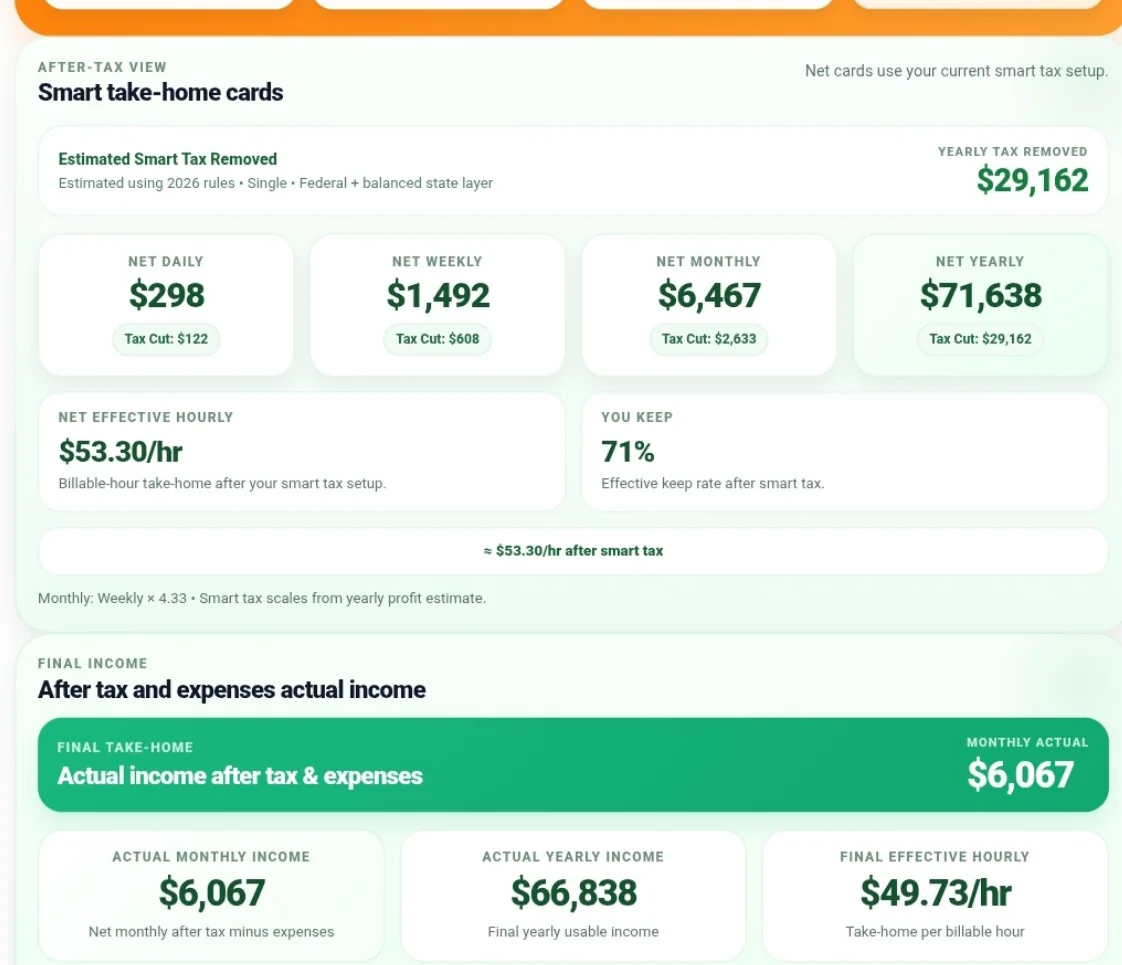
Monthly figures follow the selected monthly method, with $400 of monthly expenses subtracted from the after-tax monthly amount:
| Displayed monthly measure | Average | Realistic |
|---|---|---|
| Gross income | $8,400 | $9,100 |
| After-tax income, before expenses | $5,970 | $6,467 |
| Final usable income | $5,570 | $6,067 |
The Realistic monthly final figure is also a run-rate view; multiplying it by 12 will not reproduce the working-year final amount. Annual costs remain $4,800 in either view.
What “effective hourly” means here
For example A, the quoted rate is $75/hour. After modeled tax, the Net Effective Hourly amount is $53.30. After the expense cash outflow, Final Effective Hourly is $49.73.
The latter divides final usable annual income by the 1,344 planned billable hours. It does not divide by all 1,920 scheduled hours, and it does not measure an actual completed project’s return. To review real collections, fees, costs, and logged time after delivery, use the effective hourly-rate guide.
Where the tax estimate stops
Hourly Smart does not include QBI, full W-2 wage coordination, tax credits, or an itemized-deduction calculation. It also does not apply the ordinary $400 threshold for net earnings from self-employment under the applicable Schedule SE rules. The IRS’s 2026 estimated-tax worksheet applies a 92.35% net-earnings calculation before checking that threshold; the calculator’s simplified model does not perform that threshold check. As a result, very small-profit scenarios can overstate modeled self-employment tax.
Entering a cost does not establish its deductibility. Health insurance, retirement contributions, equipment, and other outlays can have different tax treatment; do not assume every personal cash need belongs in Monthly Expenses. The IRS maintains business-expense resources for those distinctions.
For more detail, see the self-employment tax guide and QBI deduction guide. Neither link means those fuller features are implemented in Hourly Smart. Use appropriate tax guidance or professional help for filing and payment decisions.
FIELD GUIDE / 05
Use Income Goal → Hourly Rate to work backward
Reverse planning answers what billed rate would support the selected target under your entered assumptions. Its After Tax result is before business expenses and platform fees. There is no Reverse expense input.
1. Enter the target and its period
Select Income Goal → Hourly Rate. In Target Income ($), enter 6000 and choose Per Month for example B.
The target’s period determines annualization:
| Target period | Conversion to an annual target |
|---|---|
| Per Year | Use the entered amount |
| Per Month | Multiply by 12 |
| Per Week | Multiply by your working weeks/year |
A weekly target therefore represents a working-week target, not automatically 52 paid weeks. A monthly target uses 12 months even when you plan fewer than 52 working weeks. Choosing Realistic for the result display does not change these target conversions.
2. Set Reverse’s schedule and billable time
Enter 6 hours/day, 4 days/week, 48 weeks/year, and 70% billable time. Select Average (Yearly ÷ 12) for the primary example.
Annual billable capacity is 6 × 4 × 48 × 70% = 806.4 hours. The $6,000 monthly target becomes $72,000/year.
Check the Reverse controls directly. Each mode retains its own schedule, tax setup, and monthly method; the Normal example’s Balanced state layer should not be assumed to apply here.

3. First choose Before Tax (Gross)
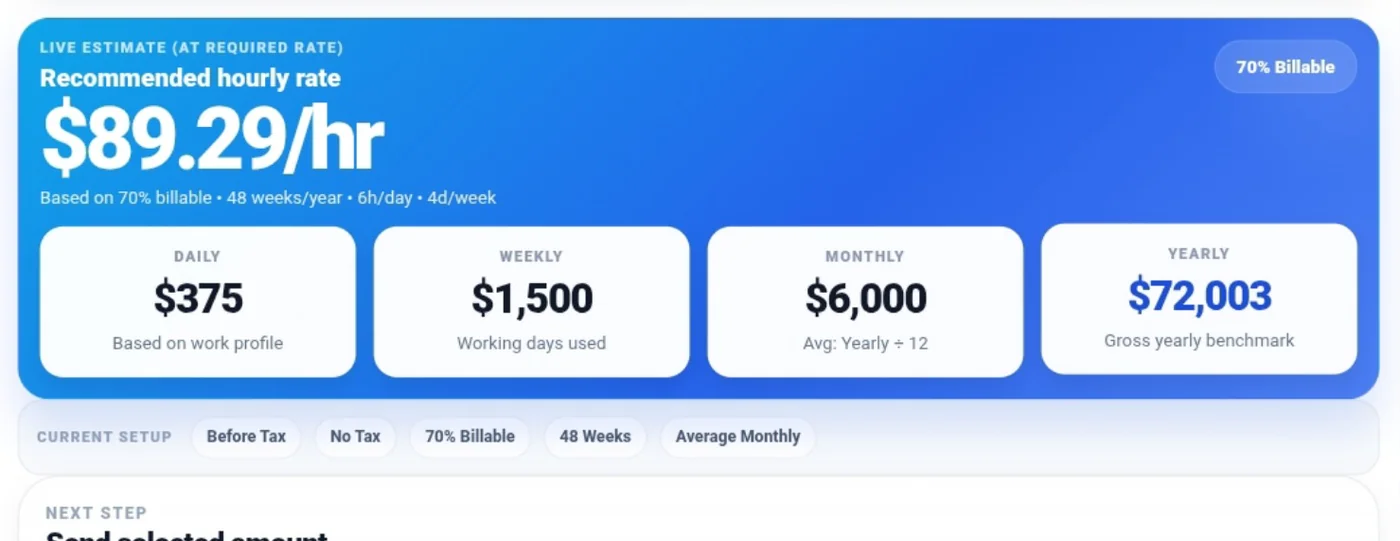
Select Before Tax (Gross). The unrounded requirement is $72,000 ÷ 806.4 billable hours, or about $89.2857/hour. The calculator rounds up to $89.29/hour.
At that billed rate, annual projected gross is about $72,003. This meets the gross target before taxes and costs. It does not mean you keep $6,000 each month.
4. Change to After Tax (Take-home)
Select After Tax (Take-home). Under Reverse Tax Setup, choose Smart, then Single and Federal only under Adjust smart tax setup.
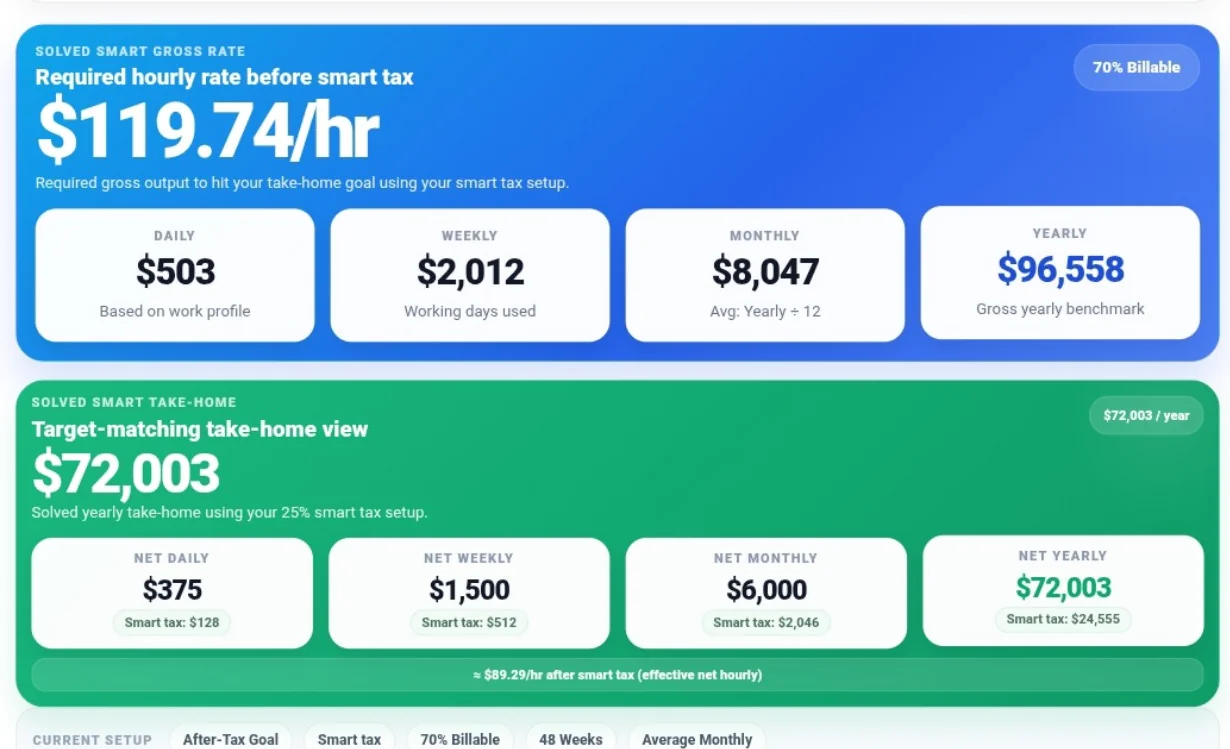
Smart works backward to a gross amount, calculates the required rate, rounds that rate upward to cents, and projects income again at the rounded rate.
| Example B result | Displayed amount |
|---|---|
| Entered target | $6,000/month |
| Annualized target | $72,000/year |
| Annual billable hours | 806.4 |
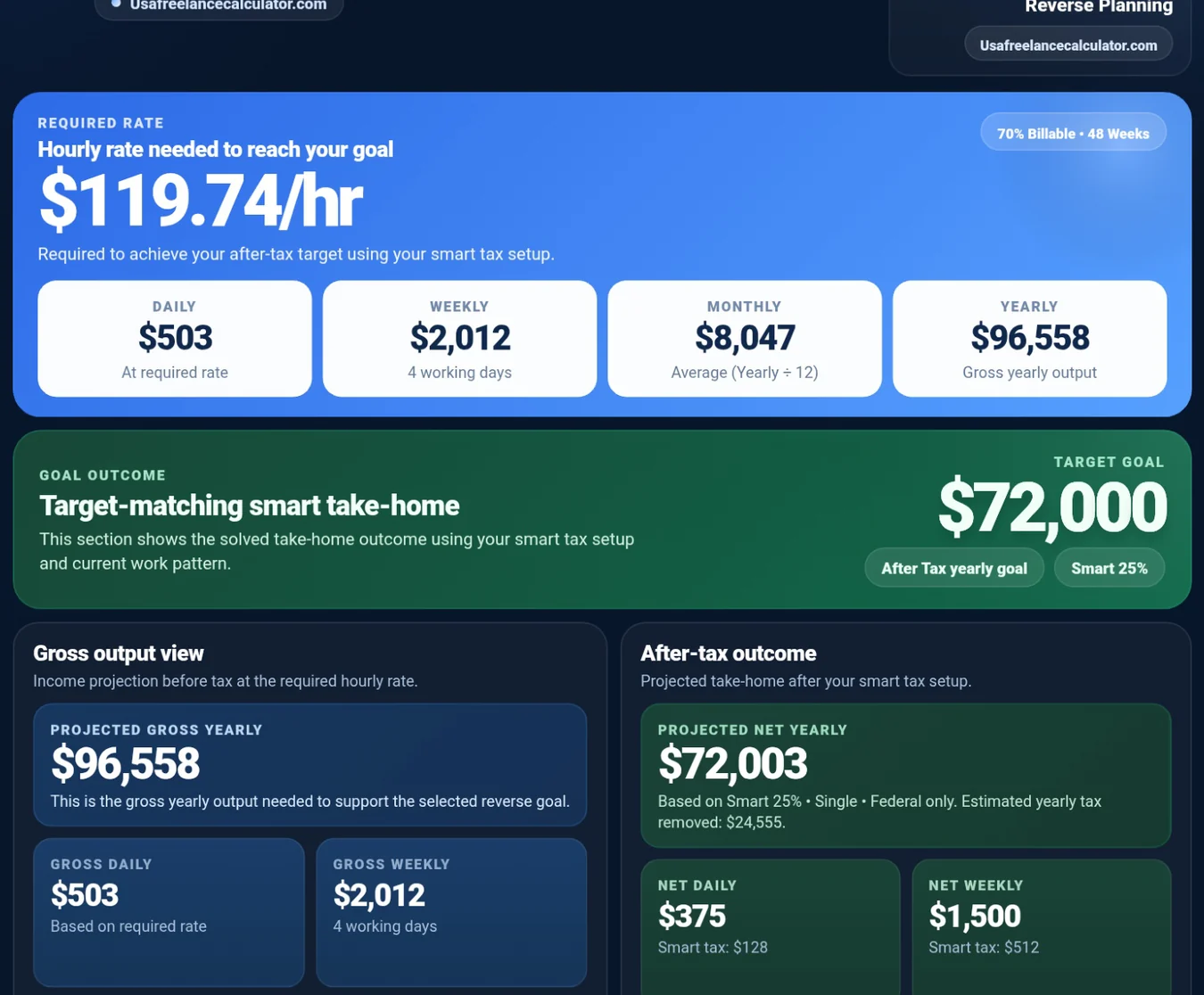
| Required billed rate | $119.74/hour |
| Projected annual gross | $96,558 |
| Estimated annual tax | $24,555 |
| Projected annual after-tax income | $72,003 |
| Average monthly after-tax income | $6,000 |
The small annual excess comes from rounding the required billed rate upward before projecting income again. The display also rounds most income cards to whole dollars.
A manual 25% reserve is a different calculation: it produces $119.05/hour for this target and schedule. Smart’s rounded 25% badge does not make it equivalent to that manual setting.
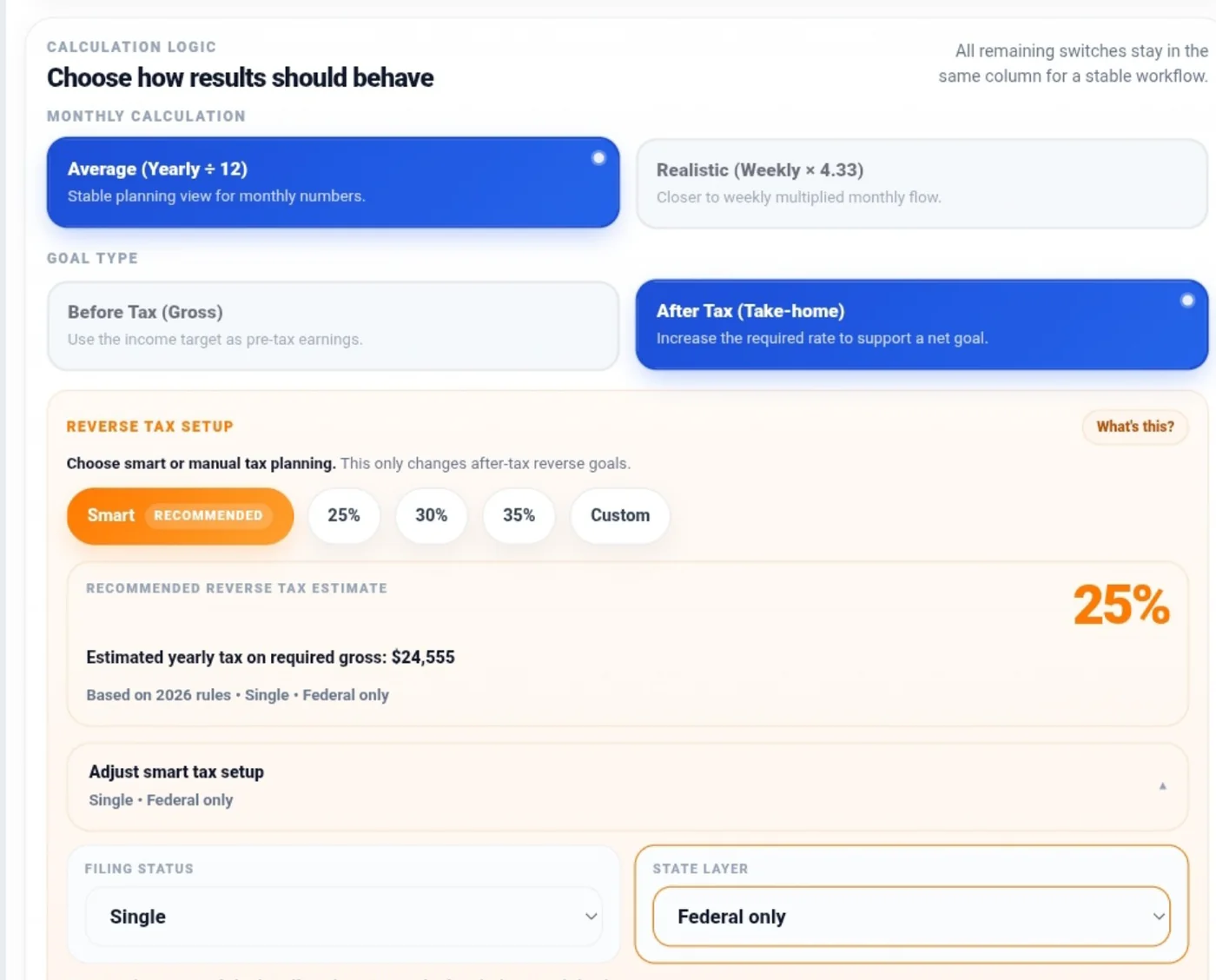
If you switch Reverse to Realistic, its monthly display can differ from the entered $6,000 target while the annual solution remains unchanged. The current gross-monthly card can retain an Average-only subtitle even with Realistic selected; use the Monthly Calculation selection to identify the actual method.
5. Decide whether you need fuller income-goal planning
The $119.74 result does not solve for $72,000 left after both tax and business overhead. Costs entered in Normal mode are not added to Reverse’s calculation.
If your target must also accommodate recurring overhead, platform fees, or a planning buffer, the Income Goal Planner may be more appropriate. Review its own assumptions rather than expecting an identical result. You can also test a candidate billed rate in Normal mode with your actual recurring costs to inspect the final usable-income estimate.
FIELD GUIDE / 06
Save, copy, and export your results
Local autosave and Reset Tool
The calculator automatically remembers settings for both modes in the current browser. Returning in that browser can restore the active mode and its saved inputs. This is local storage, not an account-based backup or cross-device synchronization; clearing the site’s browser data removes that local record.
Autosave retains current settings, not a list of named scenarios. Save an export before replacing a setup you want to compare later.
Reset Tool restores defaults for both modes, not just the visible one. It does not reset separate downstream toolkit data, so review any existing imported values in another calculator independently.
The fresh Normal defaults are $50/hour, 8 hours/day, 5 days/week, 48 weeks/year, 70% billable time, Average monthly calculation, tax off, and no expenses. Enter the worked examples explicitly rather than assuming a remembered setup matches those defaults.
Copy Summary, PDF Report, and Image Summary
After checking the active mode, inputs, monthly method, and tax assumptions:
- Use Copy Summary to copy the calculation’s text summary. Paste it into your notes and add any assumptions you need for comparison. It is not a TXT-file download or a complete saved-input archive.
- Use PDF Report to download the active mode’s branded report.
- Use Image Summary to download the active mode’s PNG report.
- Keep the inputs and mode unchanged until generation finishes. Changing them during generation can cancel the export; generate again from the intended state.
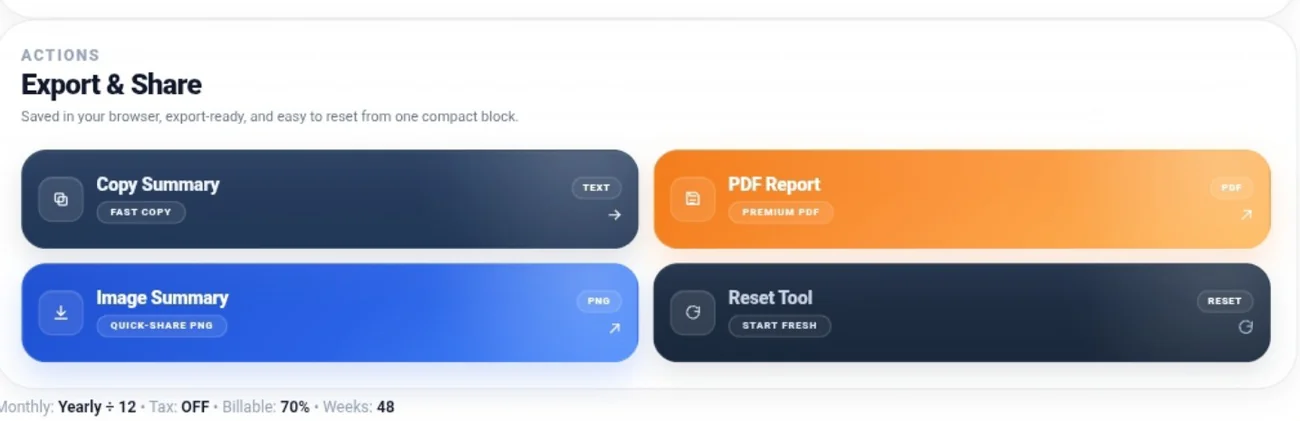
The default download filenames are Hourly-Rate-Report.pdf and Hourly-Rate-Report.png for Normal, and Reverse-Rate-Report.pdf and Reverse-Rate-Report.png for Reverse. Your browser may append a duplicate-download suffix. Light/Dark interface settings do not change the reports’ fixed styling.
Read the Normal and Reverse reports
| Report | What to look for |
|---|---|
| Normal PDF: Freelance Hourly Rate Report | Entered rate and gross periods; after-tax income when enabled; expense-adjusted income; work and tax setup; calculation details |
| Normal PNG | Gross cards, optional after-tax cards, optional after-expense panels, and setup metadata |
| Reverse PDF: Reverse Rate Planning Report | Required rate, annualized target, projected gross, optional after-tax outcome, work pattern, and report details |
| Reverse PNG | Required-rate summary, projected gross, optional after-tax cards, and goal/setup metadata |
The formats do not contain identical fields. In example A’s Realistic reports, the PDF shows both $53.30 net hourly before expenses and $49.73 final usable hourly. The PNG shows $53.30 and the final annual/monthly cash panels, but no separate $49.73 final-hourly card.
There is another hourly-label distinction when exporting Normal with tax off: a PDF card labeled Effective Billable Hourly uses the billed rate multiplied by billable percentage—a gross amount per scheduled hour. It is a different denominator from the tax-enabled net and final hourly values described above.
For example B, the current Reverse PDF pairs an annualized $72,000 Goal Setup with Period: Monthly in one summary box. That box mixes the annualized amount with the original input period. The entered target is $6,000/month = $72,000/year, as the report’s yearly target detail confirms. Do not read it as a $72,000 monthly target.
The reviewed PDFs use image-based report content. If a report is difficult to read or its text cannot be selected, use the written explanations and tables in this guide to compare the figures.
Compare scenarios without losing the assumptions
Export the first state, change one input, and export the second. Rename your downloaded copies descriptively—for example, to distinguish an Average view from a Realistic view—and keep a note of the rate, schedule, billable percentage, tax setup, and expenses.
For a meaningful comparison, change one factor at a time. Exporting the two monthly views in example A demonstrates a display-basis change; it does not show a change in annual earning capacity.
FIELD GUIDE / 07
Send the right amount to Platform Fees
The Send selected amount area offers Day, Week, Month, and Year gross amounts. Select the period you intend to transfer, then click Next: Platform Fees.
For example A, select Year: $100,800. The Platform Fee Calculator fills Client Pays with that annual gross amount. It does not import the $66,838 final usable-income estimate as the client payment, nor synchronize your Hourly tax and expense settings.
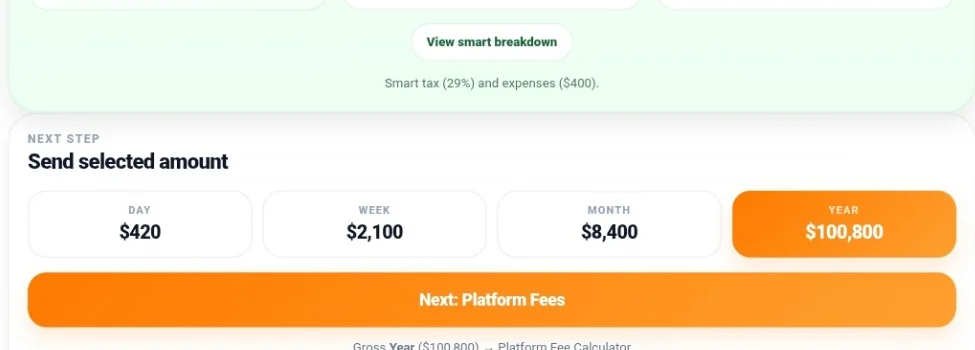

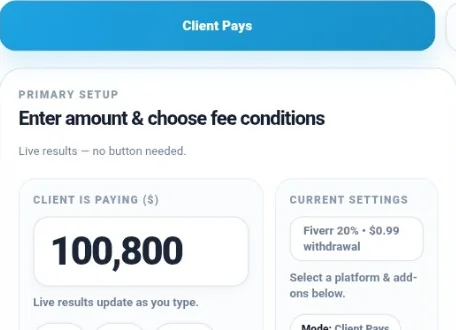
Review the destination’s fee, payout, add-on, and tax assumptions before using its result. A preset is a starting point, not proof of the fee on your contract. Avoid deducting the same platform fee in both a cost assumption and a later fee calculation.
For a 48-week annual plan, Year preserves the original annual gross more clearly than transferring a Realistic monthly run rate. If a later tool treats $9,100 as recurring for all 12 months, it would model $109,200 rather than this example’s $100,800 annual gross.
Ordinary toolkit navigation links open a destination without sending the current Hourly result through this Next action. A destination may still contain older saved context, so check its import message and fields.
The Freelance Tax Estimator supports fuller tax planning, the Income Goal Planner helps build a broader target, and the Budget Planner helps allocate an income assumption. Continuing through the toolkit does not make every page’s tax, cost, or income settings identical.
FIELD GUIDE / 08
Common mistakes to avoid
FIELD GUIDE / 09
Frequently asked questions
Does the calculator tell me the market rate I should charge?
It models the consequences of your inputs. A cost-based requirement is useful for deciding whether an engagement can support your business, but it does not establish client willingness to pay. If the numbers do not fit, consider scope, workload, or service structure rather than assuming the displayed rate guarantees a sale.
Why do calculations from the visible cards differ by a dollar or a few cents?
Most income cards show whole dollars, while calculations retain more precision and hourly rates show cents. Recomputing from rounded cards can introduce a difference. Compare the same assumptions and periods, and avoid applying an additional billable adjustment to an already adjusted result.
Does changing Per Month to Per Year convert the number I entered?
No. Changing the period leaves the number in Target Income unchanged and changes what that number means. For the same goal, explicitly enter 6,000 Per Month or 72,000 Per Year. Verify the amount and period together before interpreting the rate.
Can I send someone a link that restores all my scenario inputs?
The tool’s share and link-copy controls share the calculator page, not a complete saved scenario. For a specific calculation, share an exported report or copied summary with its assumptions. Review the material before sending it.
Should I use the annual tax estimate divided by four as my quarterly payment?
Not automatically. Withholding, prior payments, safe-harbor rules, and payment periods can change what is required. Use the quarterly estimated-tax guide and the relevant IRS instructions rather than treating a planning estimate as a payment instruction.
FIELD GUIDE / 10
Put the calculation to work
Open the USAFC Hourly Rate Calculator, check your working schedule and billable percentage, then choose the mode that matches your question. Compare the quoted rate with what it produces—or solve for a target—before reviewing costs, taxes, fees, and the final usable amount. Save the assumptions with your result so the next comparison is meaningful.
This guide is for education and planning. Calculator estimates are not exact tax liability, guaranteed take-home pay, or financial, tax, or legal advice.