Freelance Platform Fee Calculator: Take-Home Pay & Quotes
How to Use a Freelance Platform Fee Calculator: Take-Home Pay, Client Quotes, and Tax Reserves
A client offers $1,000. How much remains after marketplace fees? Or, if you need to keep $1,000, what should you quote?
Those are different calculations. The USAFC Platform Fee Calculator handles both, with optional processing charges, payout costs, and tax reserves. You can compare scenarios and save a breakdown as a PNG or PDF.
This walkthrough starts with a simple payout, then builds toward reverse quotes and Smart Tax planning. “After-reserve” means cash remaining after the calculator's selected reserve—not a guaranteed after-tax income or a completed tax return. Other operating expenses may still need to come out of that cash.
Choose the mode that matches your question
What remains after selected deductions
The modeled gross payment needed to support that goal
The calculator saves settings in your browser. Returning tomorrow may restore yesterday's processor, withdrawal charge, or tax selection.
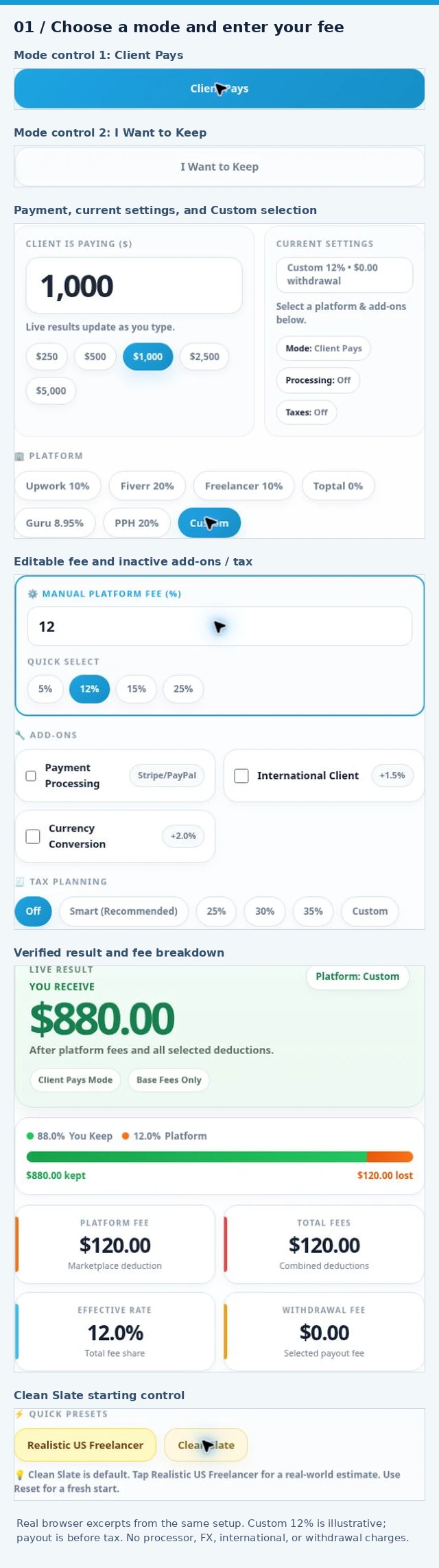
For the standalone examples below, click Clean Slate first. It clears add-ons and tax planning, sets withdrawal to zero, and clears a manually entered Custom percentage. Then select the mode, amount, and platform fee again. It does not necessarily replace your current amount or selected platform.
Confirm that Tax Planning says Off before a no-tax example. Results update as you type; View Results helps you reach them rather than being required to calculate.
Realistic US Freelancer applies a bundled scenario. Use it only after inspecting what it enables. Reset restores a fresh default setup; neither button substitutes for checking your actual charges.
Under Platform, choose a preset or Custom, then enter Manual Platform Fee (%). Presets are starting assumptions. An Upwork contract with a 12% fee needs Custom 12%, even though the Upwork preset says 10%. The comparison section below explains other preset limitations.
For the broader distinction between client payments and payouts, see how platform fees affect real freelance earnings.
 View original image
Expand complete screenshot here
Client Pays: find what remains from a payment
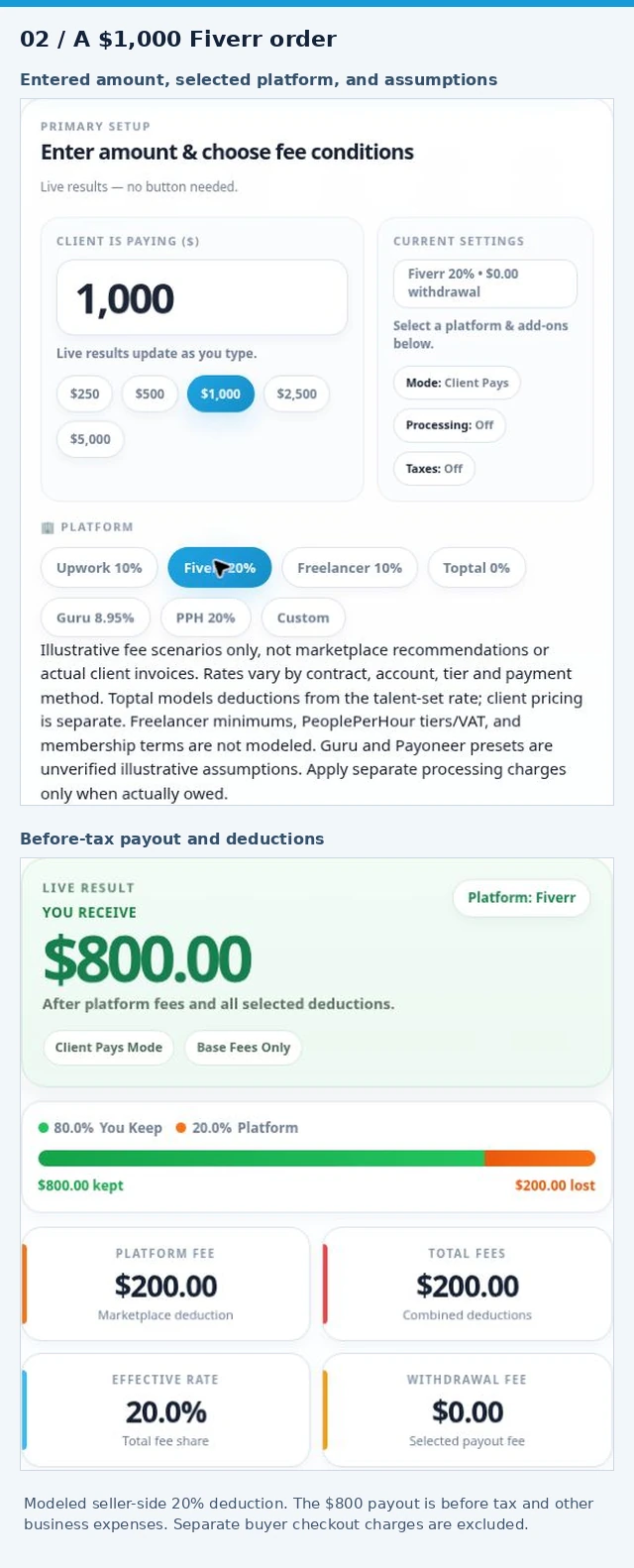
Example A: a $1,000 Fiverr order
- Apply Clean Slate and choose Client Pays.
- Enter 1,000 under Client Is Paying ($).
- Select Fiverr 20%.
- Leave processing, international, conversion, and tax options off, with withdrawal at $0.
| Breakdown | Amount |
|---|---|
| Client payment modeled | $1,000.00 |
| Platform fee: 20% | −$200.00 |
| You Receive, before taxes | $800.00 |
This models the order value before the seller's deduction, not the buyer's complete checkout bill. Fiverr's earnings guidance says freelancers earn 80% of completed orders, including extras and tips.
The $800 is not automatically personal spending money: income taxes, self-employment tax, and other business costs are outside this baseline.
 View original image
Expand complete screenshot here
Add charges only when you actually owe them
Payment Processing enables percentage and fixed charges. Expand Advanced Options to inspect Processor Preset, Processor % Fee, Processor Fixed ($), and Withdrawal Fee — Quick Select.
For a separate direct-client example, choose Custom 0%, $1,000 gross, and the Stripe preset of 2.9% plus $0.30. Processing is $29.30, leaving $970.70 before taxes and other charges. Stripe documents that standard domestic-card rate; other payment methods and services can cost differently.
The following additions illustrate the calculator's behavior:
| Add to that direct-client example | Additional deduction | Remaining before tax |
|---|---|---|
| International Client +1.5% | $15.00 | $955.70 |
| Then Currency Conversion +2.0% | $20.00 | $935.70 |
| Then a $2 withdrawal | $2.00 | $933.70 |
Percentage add-ons here use the original $1,000, not a shrinking balance. Withdrawal comes afterward and is capped at available payout.
These are modeled settings, not universal tariffs. For example, Stripe's cited pricing lists a 1% conversion addition; USAFC's 2% conversion toggle is a different illustrative assumption. Do not enable a charge merely because a client lives abroad or uses a card. Check the actual payment method and fee basis.
Likewise, do not add Stripe or PayPal simply because Upwork or Fiverr processes a buyer's payment. Enable separate processing only when you actually bear that additional charge, and avoid entering it twice in different controls.
Example C: why the cents matter
At $1,000.55 with a 10% fee, the fee calculation is $100.055. Decimal half-up rounding produces $100.06, leaving $900.49. A small technical check—$0.35 at 10%—similarly gives a $0.04 fee and $0.31 retained.
Individual rounded components can affect a reverse quote by a cent. Read the complete breakdown rather than rounding every intermediate percentage yourself.
I Want to Keep: set a before-tax goal
Example B: retain $1,000 after a 10% fee
Apply Clean Slate, choose I Want to Keep, and enter 1,000. Under Reverse Goal Type, select Before Tax. Use Custom 10%, with reverse tax planning off and no add-ons.
The calculator shows $1,111.11 to charge:
$1,000 ÷ (1 − 0.10) ≈ $1,111.11
Its rounded fee is $111.11, so $1,111.11 − $111.11 leaves exactly $1,000. Adding only 10% would produce a $1,100 quote and a $990 payout.
Example D: add a reserve preview without raising the target
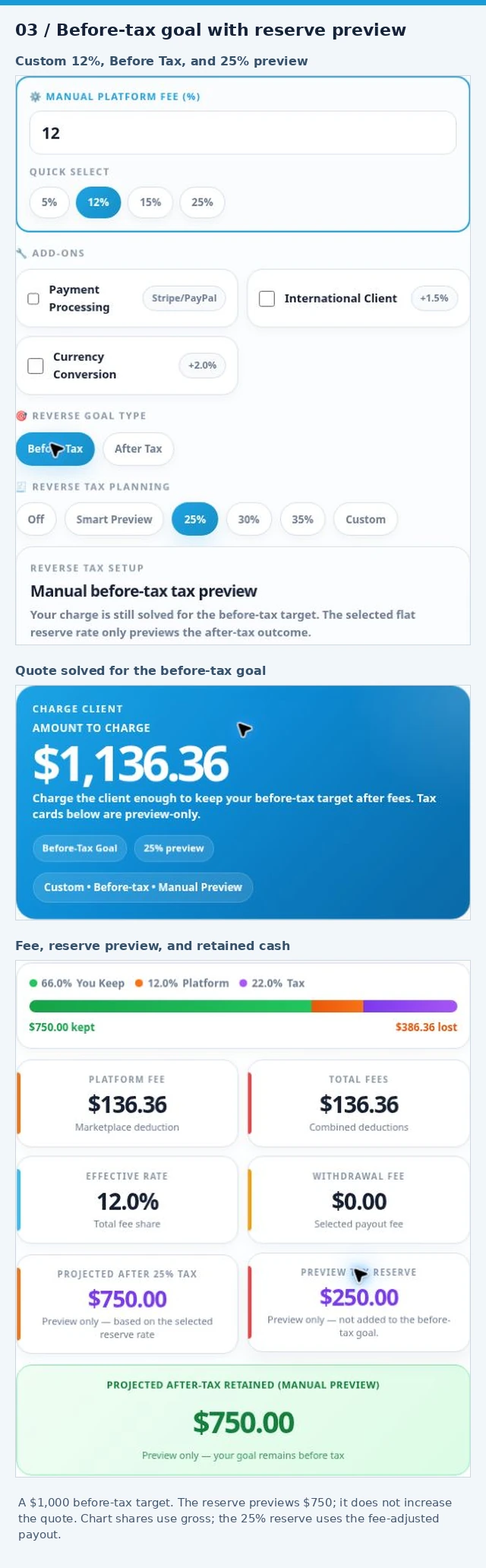
Keep the $1,000 target and Before Tax selected. Change Custom to 12%, then select 25% under Reverse Tax Planning.
| Result | Amount |
|---|---|
| Charge client | $1,136.36 |
| Platform fee | −$136.36 |
| Retained before tax | $1,000.00 |
| Manual reserve preview: 25% | −$250.00 |
| After-reserve amount | $750.00 |
The reserve previews what could remain from your $1,000 before-tax target. It does not increase the quote while Before Tax stays selected.
The visual split uses gross payment as its denominator: $750 is about 66% of $1,136.36; the platform fee is 12%; the reserve is 22%. The reserve is still 25% of the $1,000 payout. Different denominators explain the different percentages.
 View original image
Expand complete screenshot here
After-Tax Goal: quote for the amount left after a reserve
Example E: keep $1,000 after a 10% fee and 25% reserve
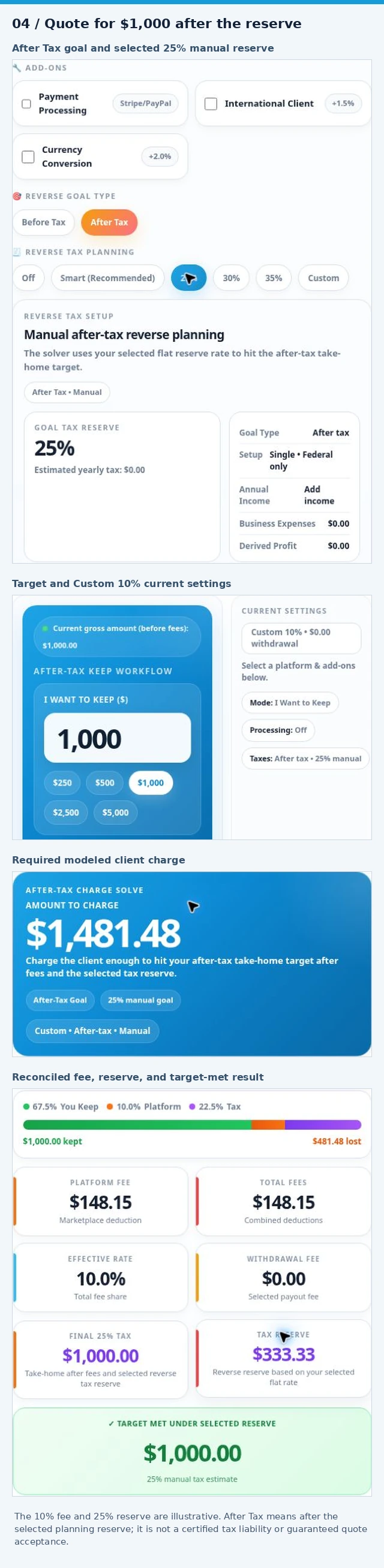
Use a fresh I Want to Keep setup with a $1,000 target, Custom 10%, and no add-ons. Select After Tax under Reverse Goal Type and 25% under Reverse Tax Planning.
Here, the interface's After Tax setting means the target is after the selected planning reserve.
| Breakdown | Amount |
|---|---|
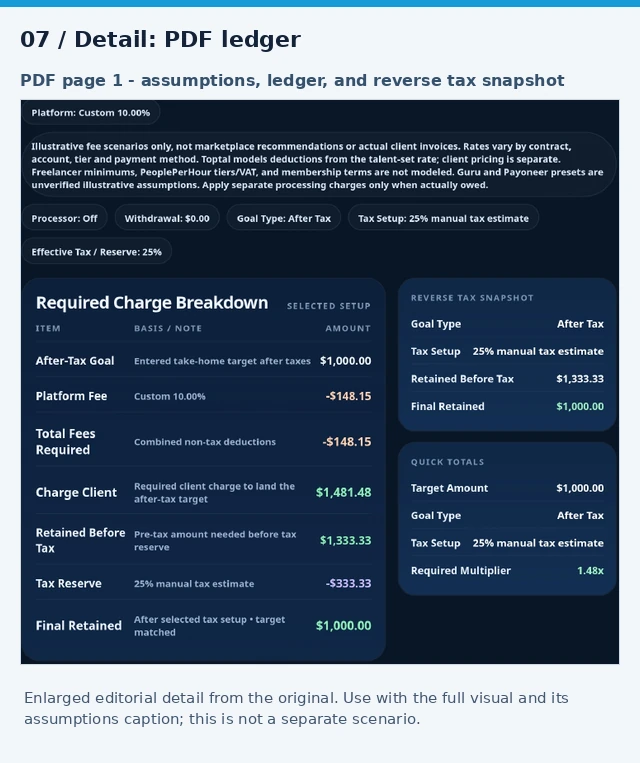
| Charge client | $1,481.48 |
| Platform fee | −$148.15 |
| Retained before reserve | $1,333.33 |
| Manual reserve | −$333.33 |
| Final retained amount | $1,000.00 |
The continuous calculation is:
$1,000 ÷ (1 − 0.25) ÷ (1 − 0.10) ≈ $1,481.48
The calculator then checks the rounded fee and reserve amounts. Manual 25% is an assumption for this example—not a universal tax requirement.
Why not add 35%? A $1,350 quote loses $135 to the platform, leaving $1,215. A 25% reserve then removes $303.75. You retain $911.25, missing the goal by $88.75.
The fee applies to gross payment; the reserve applies to the fee-adjusted amount. They are not two markups on the original target.
 View original image
Expand complete screenshot here
A mathematically sufficient quote still needs a willing buyer. If it exceeds the budget, review scope and profitability rather than assuming a higher price will be accepted. Our guide to raising your rate after platform fees covers that commercial decision.
Smart Tax: calibrate a reserve using your annual profile
Example F: $96,000 income and $16,000 expenses
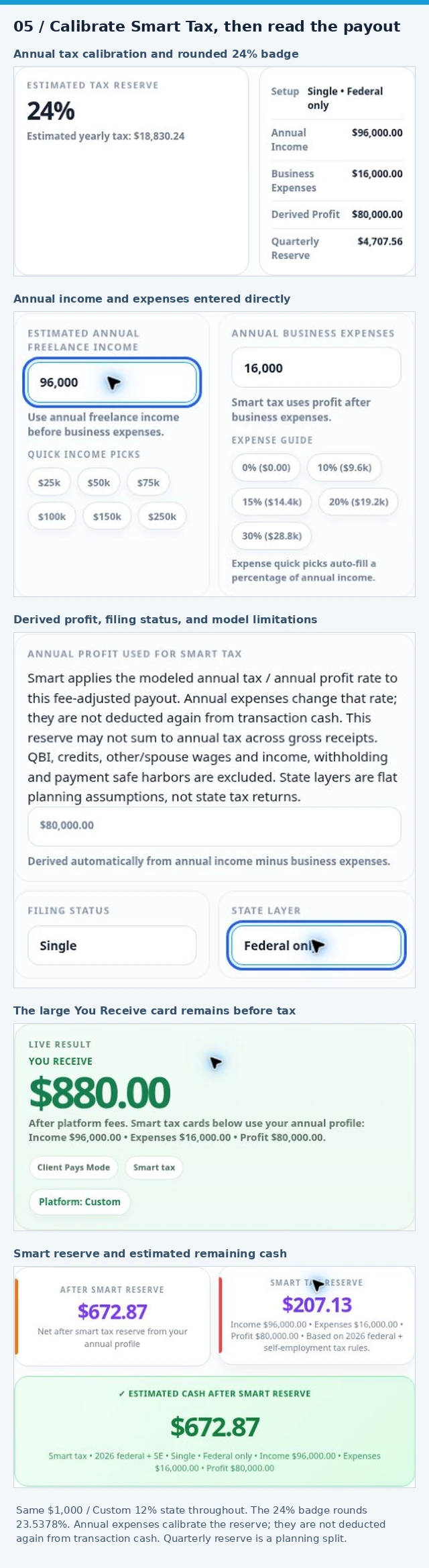
Choose Client Pays, $1,000, and Custom 12%, with other add-ons off and withdrawal zero. Select Smart (Recommended) under Tax Planning, then open Adjust smart tax setup.
Enter:
The annual modeled profit is $80,000. For this profile, the simplified 2026 model calculates $18,830.24 in annual federal and self-employment tax. Its profit-based reserve ratio is:
$18,830.24 ÷ $80,000 = 23.5378%
That calibration produces this transaction breakdown:
| Transaction result | Amount |
|---|---|
| Client payment | $1,000.00 |
| Platform fee | −$120.00 |
| You Receive, before tax | $880.00 |
| Smart reserve | −$207.13 |
| Estimated cash after Smart reserve | $672.87 |
The prominent You Receive amount remains $880. Look at the Smart reserve and final cash cards for $207.13 and $672.87.
Why the badge says 24%
The badge rounds the effective percentage to a whole number. The calculation uses greater precision, allocating the modeled federal and self-employment components separately and rounding them to cents. Multiplying $880 by the displayed 24% would give $211.20, which is not this example's reserve.
Annual calibration is different from transaction cash
The $16,000 changes annual profit and the reserve ratio. It is not subtracted again from this one $880 payout, and the tool does not allocate a share of those operating costs to each transaction. You still need cash for those costs.
Keep annual figures on a consistent basis: gross annual receipts require matching expenses; fee-adjusted annual income should not have the same fees deducted again. Applying the profit-based ratio to fee-adjusted receipts can reserve more than the modeled annual tax across a year. It is not a complete business cash-flow forecast.
The $4,707.56 Quarterly Reserve is the annual estimate divided by four—not an automatic IRS payment requirement.
 View original image
Expand complete screenshot here
What Smart leaves out
Smart uses a simplified 2026 federal and self-employment model. IRS Publication 505 explains estimated-tax mechanics; IRS 2026 inflation adjustments provide the deduction and bracket assumptions.
This calculator's Smart reserve excludes QBI, tax credits, other or spouse wages/income, withholding, and payment safe harbors. Optional state layers are flat assumptions, not state returns. Do not stack an additional self-employment reserve on top of Smart's existing SE component. Your actual liability can differ in either direction.
Compare platform scenarios without mistaking presets for policies
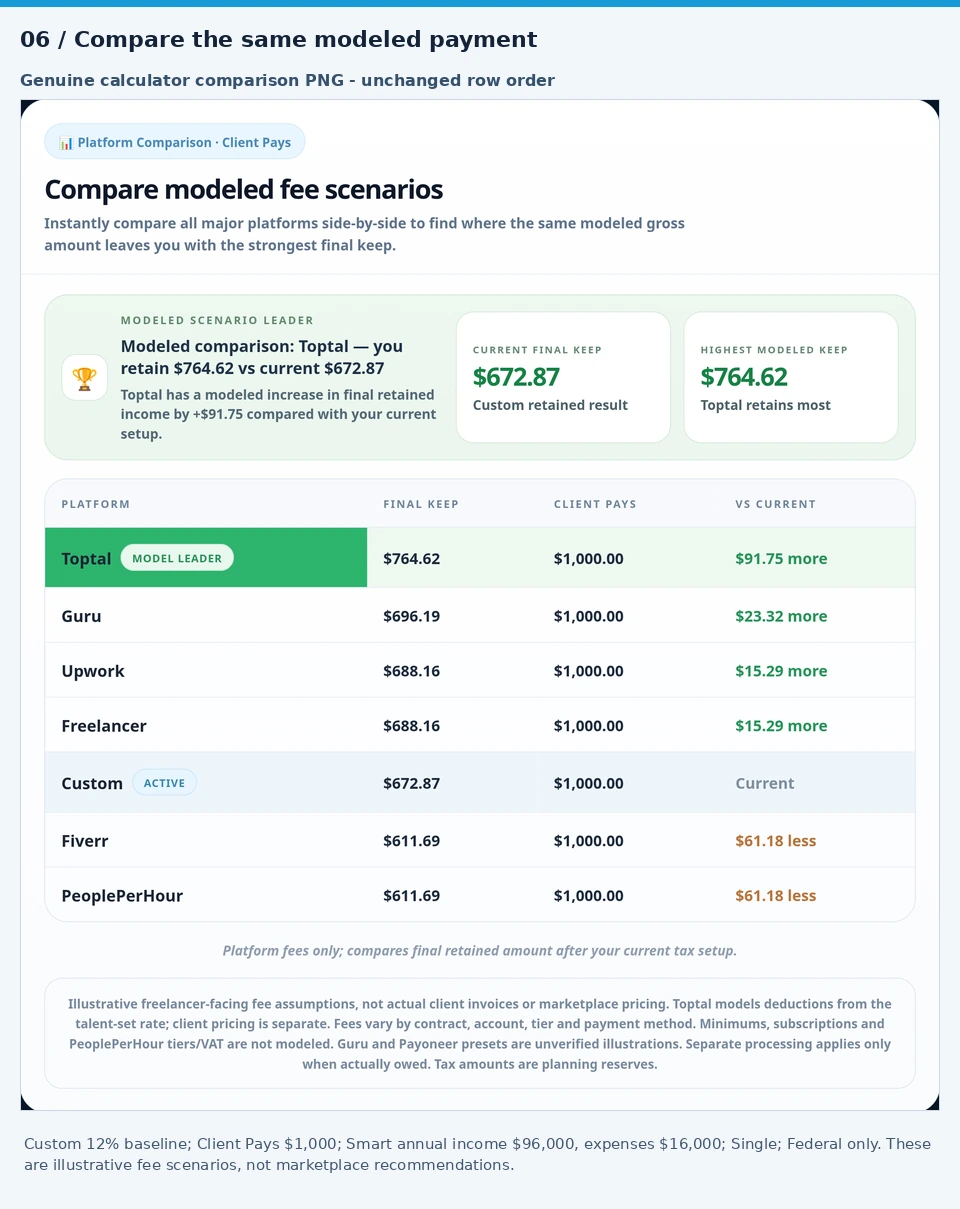
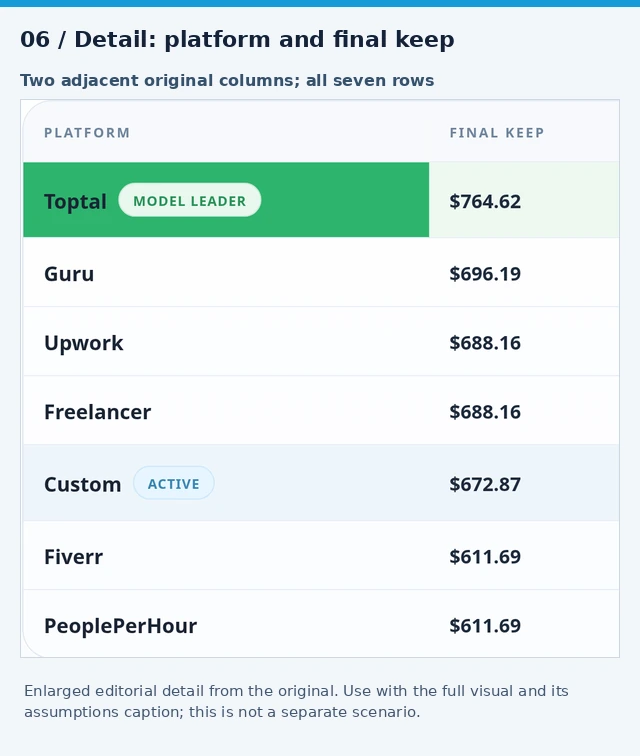
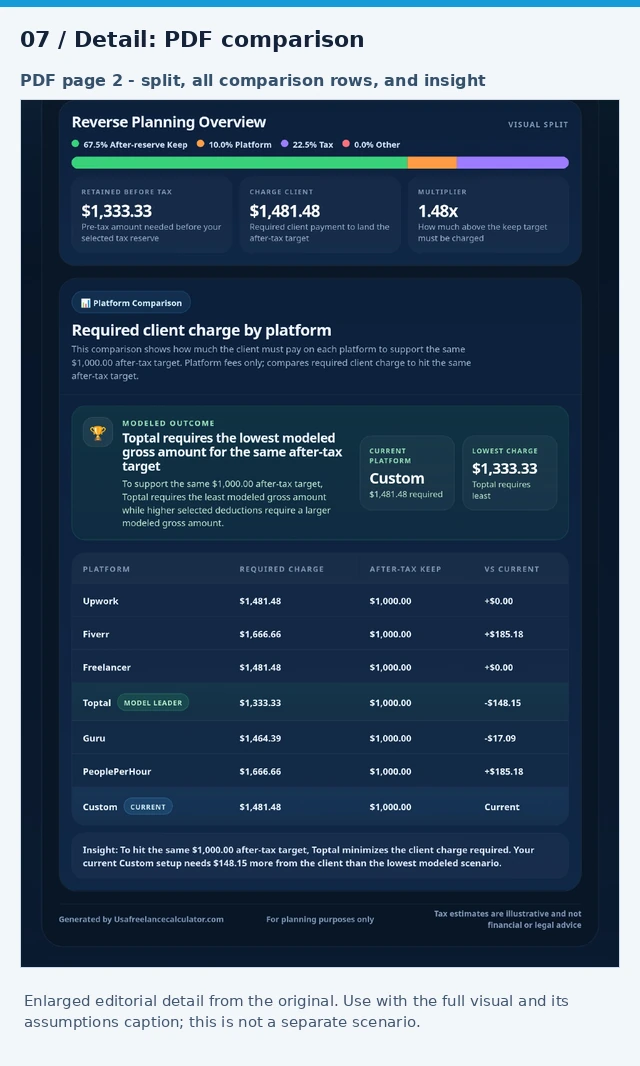
In Client Pays, the comparison holds the modeled gross amount constant and compares retained amounts. In I Want to Keep, it compares the modeled gross needed for the same target. Read the column headings and tax note: the relevant retained amount changes with your goal and tax setup.
For example, Custom 12% on $1,000 leaves $880 before reserve. The Upwork 10% scenario leaves $900—a $20 modeled difference, not evidence that a particular Upwork contract will pay $20 more.
| Platform selector / preset | Check before relying on it |
|---|---|
| Upwork: 10% | Official fees range from 0% to 15% per contract. Check the proposal, offer, or contract; use Custom for a different rate. |
| Fiverr: 20% | The documented 80% freelancer earnings split does not include every optional service or payout cost. |
| Freelancer: 10% | Fixed-price projects generally have a 10% or $5 minimum fee, whichever is greater; hourly projects generally use 10%. The preset does not enforce the minimum. |
| Toptal: 0% | Toptal says it does not deduct from talent-set rates. Its separate client pricing is not modeled. |
| Guru: 8.95% | Treat this as illustrative. Check your membership and job-fee terms, including any employer contribution. |
| PPH: 20% | PeoplePerHour uses lifetime billing tiers per buyer, with 20%, 7.5%, and 3.5% rates excluding VAT. The flat preset does not reproduce the tiers. |
A Model Leader label describes the selected assumptions. Toptal's 0% talent-side deduction does not establish the lowest total client bill or the best marketplace overall. The comparison also does not value client demand, unpaid prospecting, subscriptions, or paid bids.
 View original image
Download a breakdown you can understand later
Once the numbers and assumptions are correct, use:
A compact scenario snapshot
Reviewing modeled platform differences
Keeping the detailed setup and breakdown together
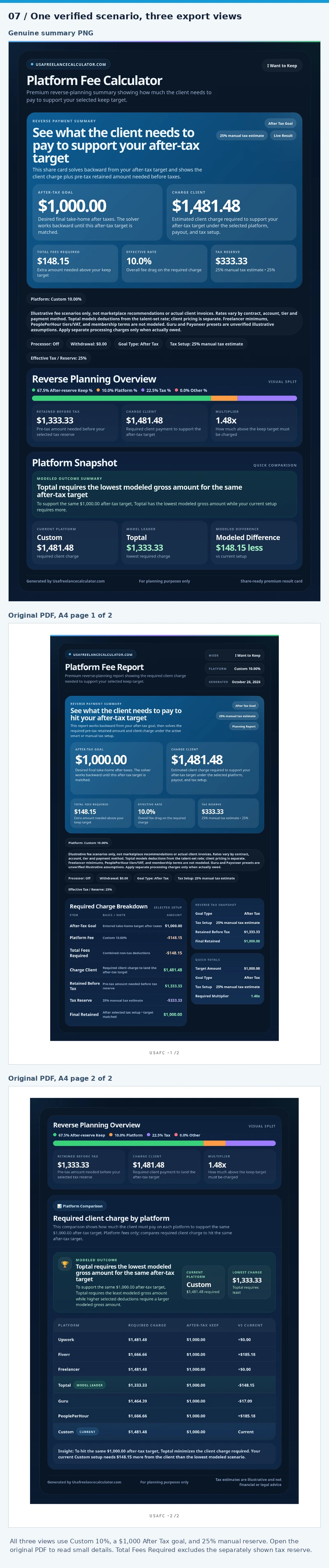
The PDF's first page contains the payment or reverse-quote summary, assumptions, and detailed breakdown. Page two contains the visual split and platform comparison. Client Pays reports start with a payment; reverse reports start with a target and required gross. Check the platform name, goal type, and reserve setting before saving.
In the before-tax preview example, the PDF should show $1,136.36 charged and $750 after reserve. In the after-reserve example, it should show $1,481.48 charged and $1,000 retained.
Use Copy Breakdown for text notes. Wait for a download to finish before editing; changing the calculation during generation cancels an outdated export.
 View original image
Expand complete screenshot here
Original sample exports Open or save the actual calculator-generated files
These files are example planning reports, not invoices or tax-return certifications. Create your own live exports using the calculator.
These are planning records. They are not formal invoices, certified tax records, or guarantees that a client owes or will accept the modeled quote. Keep actual marketplace statements and supporting business records separately.
Continue from hourly pricing to tax planning
The connected path is:
Start in the Hourly Rate Calculator to establish a billing baseline and select the gross amount and period to pass forward. Review imported settings before adding platform fees, especially if your broader pricing already allows for them. Clean Slate or manual amount edits clear imported period context, so recheck the handoff label afterward.
In Send to Next Tool, select You Receive (pre-tax), then Next: Tax Estimator to continue in the Freelance Tax Estimator. The other option, Client Pays, sends gross instead; the tool does not force every transfer to use the payout.
For the Smart example, the fee-adjusted amount is $880, not $1,000 gross or $672.87 after reserve. Let the destination estimate taxes from the appropriate pre-tax basis rather than taxing an already reserved amount again.
Review its import banner, Annual/Monthly selection, and existing expenses. A single $880 project is not $880 of annual earnings: replace it with an appropriate period total before relying on an annual tax estimate. If fees are already deducted from imported income, do not deduct them again as destination expenses. Other expenses still matter.
 View original image
Expand complete screenshot here
A payout is not automatically Schedule C profit. Our Upwork/Fiverr tax guide covers annual reconciliation. After completing a job, the effective hourly earnings guide helps compare fees and costs with actual hours worked.
Avoid common mistakes before using the result
Use I Want to Keep and inspect the resulting deduction.
Verify your account terms; enter a supported Custom rate when needed.
Enable only charges you actually pay separately.
Check Reverse Goal Type before reading the quote.
Review its exclusions and your broader tax situation.
Match the income basis to expenses in each tool.
Compare modeled numbers while considering actual client and platform terms.
Apply Clean Slate, re-enter the fee, and verify every active control.
If results are unavailable, complete any highlighted input and review fee limits or missing Smart setup before copying or exporting.
Before saving a scenario, confirm the amount, actual fee, extra charges, target type, and reserve assumption. Then check that the breakdown reconciles to the displayed result.
YOUR NEXT STEP
Open the Platform Fee Calculator and start with the question you need to answer: what remains from a payment, or what payment supports your chosen keep amount?